 GasPass
 Guides › Getting started
3. Adding a customer
A new customer in four short steps. Give a full address and their first property is made for you, ready for jobs and certificates.
-
1Customers
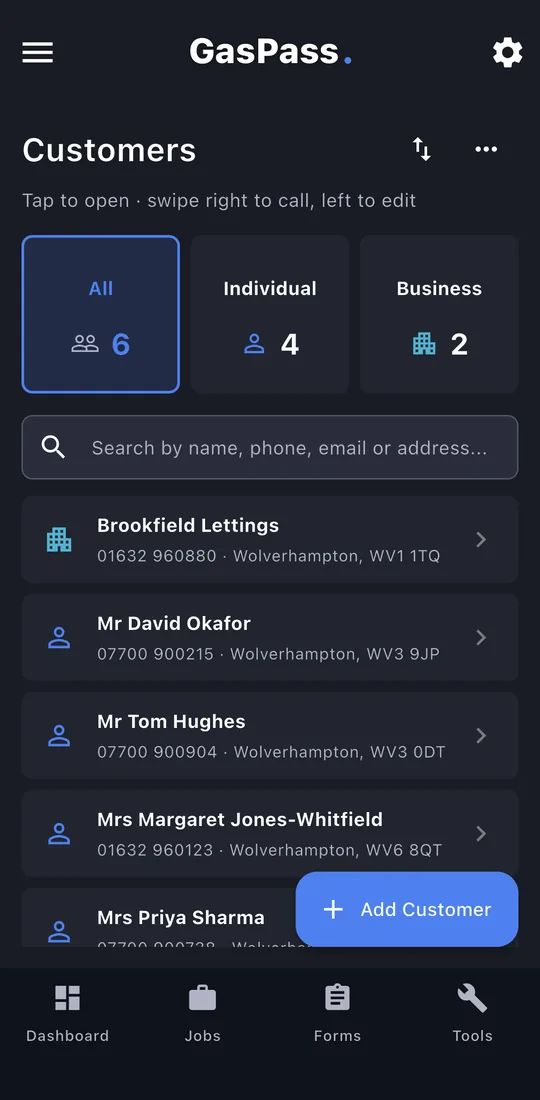
Tap the Customers tile on the dashboard (or Customers in the ☰ menu). Search by name, phone, email or address. Swipe a customer right to call them, or left to edit. Tap Add Customer.
-
2Who they are
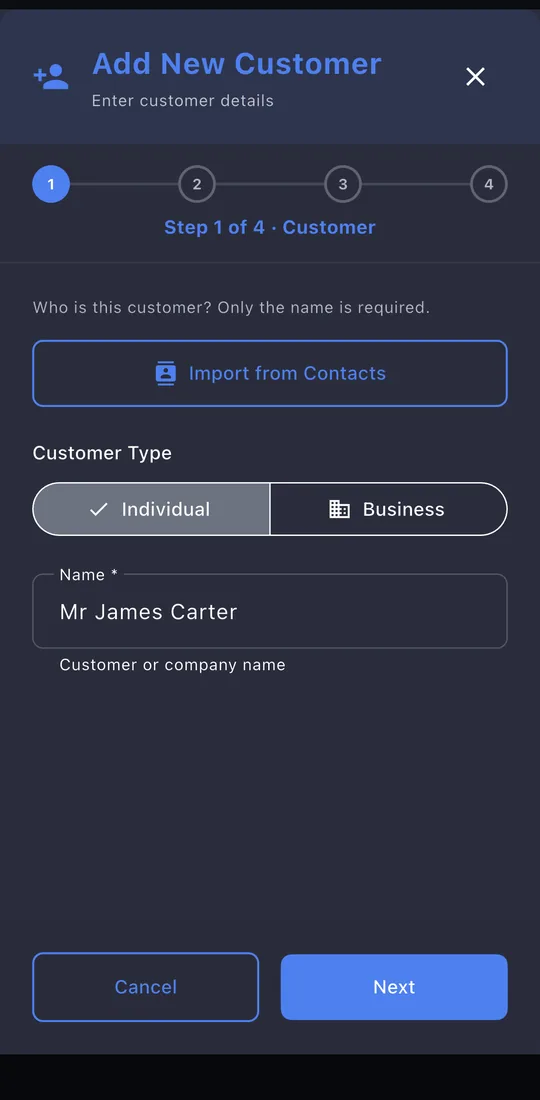
Choose Individual or Business and type their name. That's the only thing you have to fill in. Import from Contacts fills everything in from your phone's contacts.
-
3How to reach them
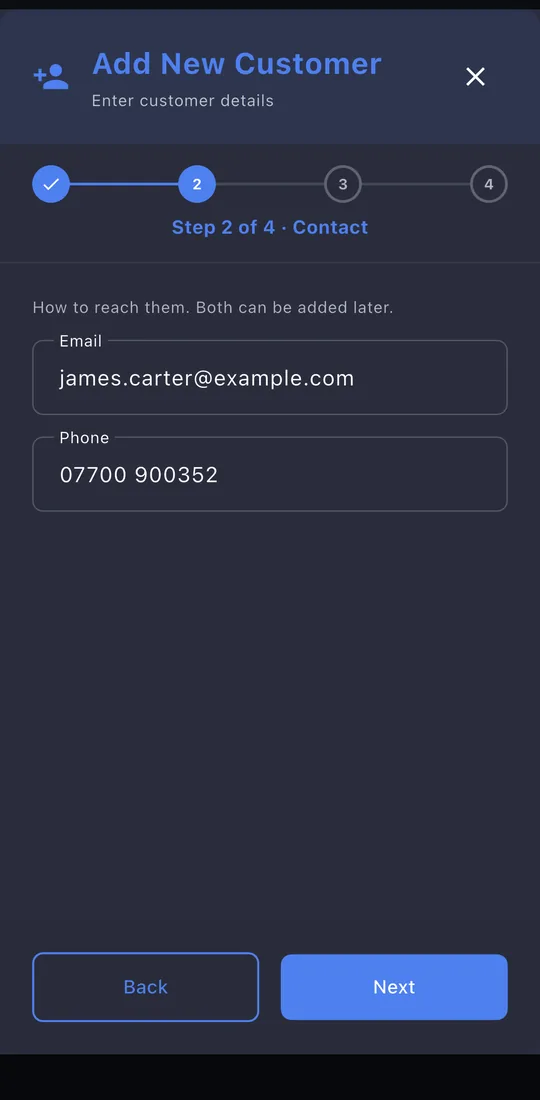
Their email and phone number. Both can be added later.
-
4Their address
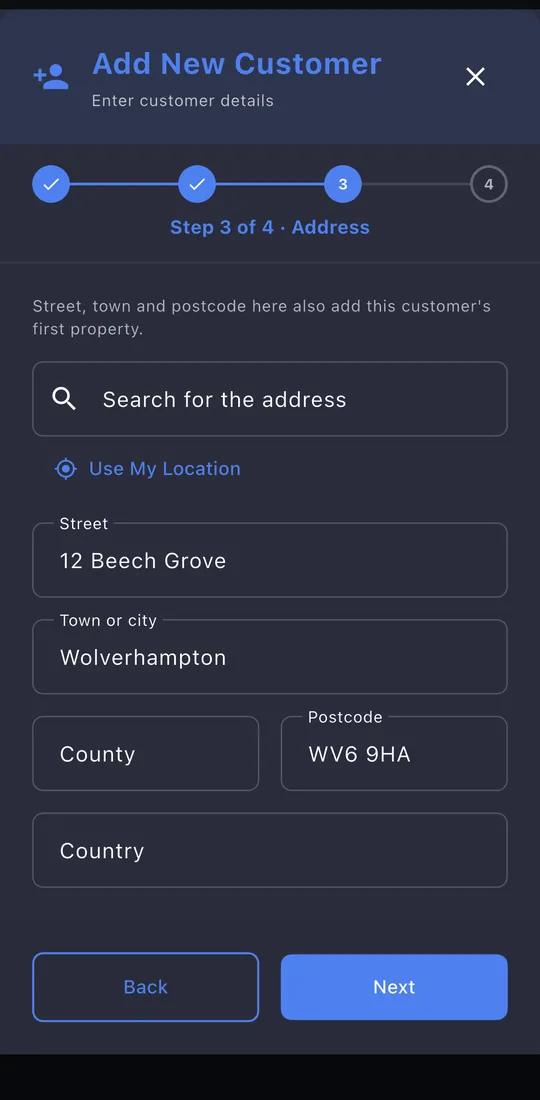
Search for the address, tap Use My Location if you're there, or type it in. With a street, town and postcode, GasPass also adds the address as the customer's first property.
-
5Notes
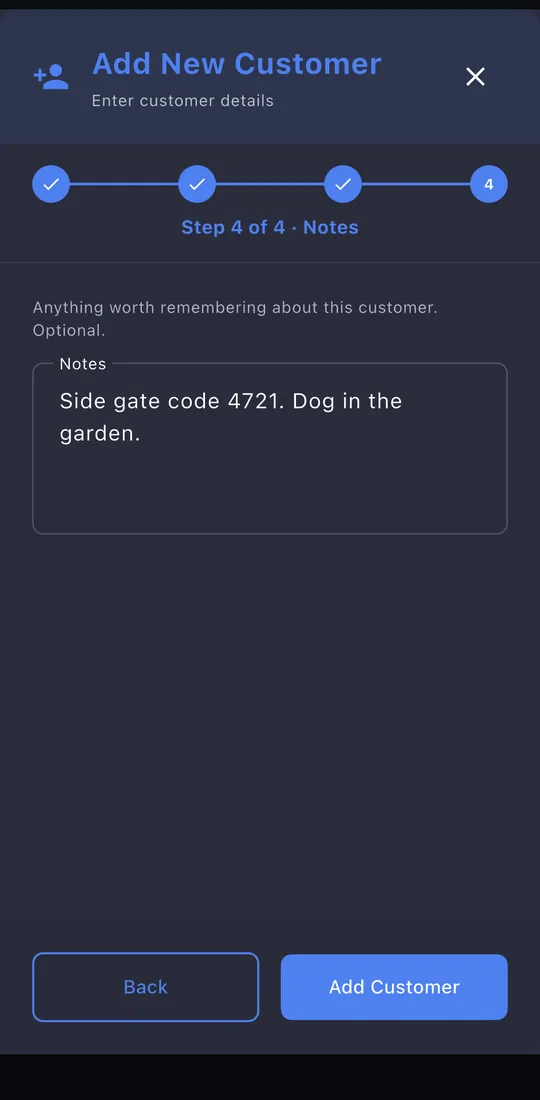
Anything worth remembering: gate codes, parking, pets. Tap Add Customer.
-
6The customer's page
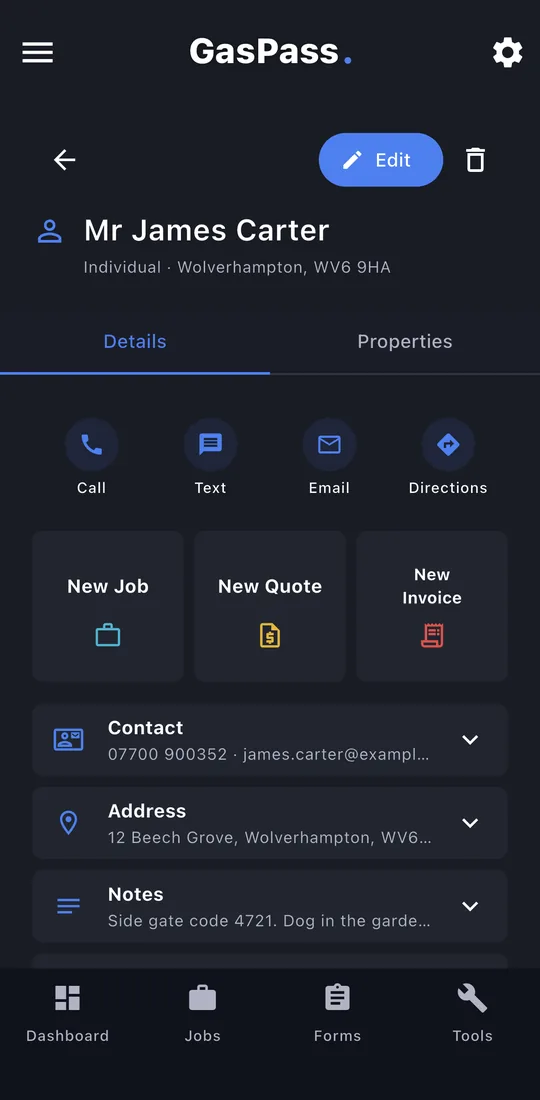
Call, text, email or get directions in one tap. Start a New Job, New Quote or New Invoice with the customer already chosen. Their contact details, address, notes and activity sit below.
-
7Their properties
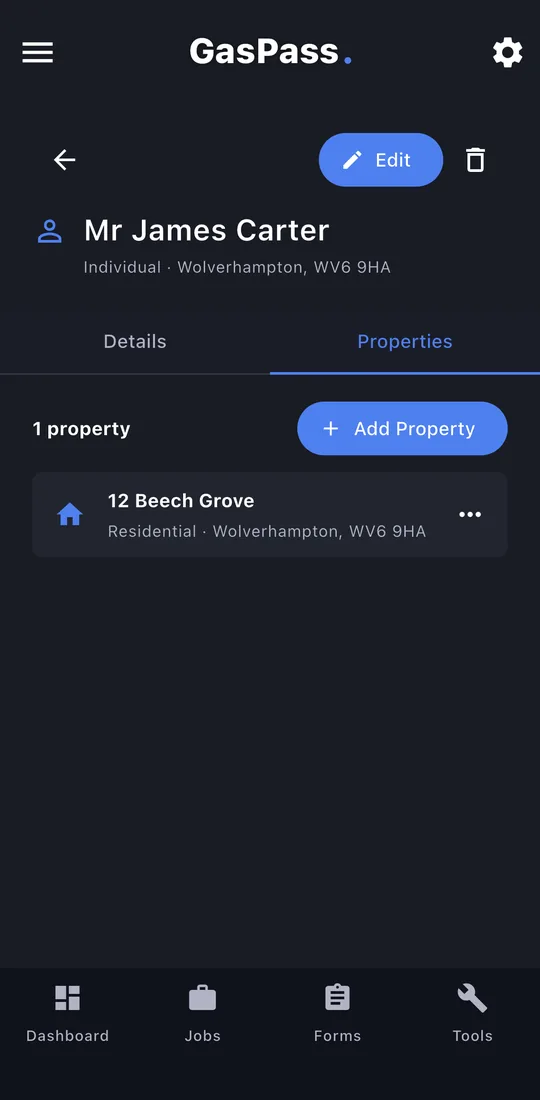
The Properties tab shows the property made from their address. Landlords and letting agents can have as many as you need: tap Add Property.