 GasPass
 Guides › Getting started
2. A look around the app
Where everything is: the dashboard, the four sections along the bottom of the screen, the menu and Settings.
-
1The dashboard
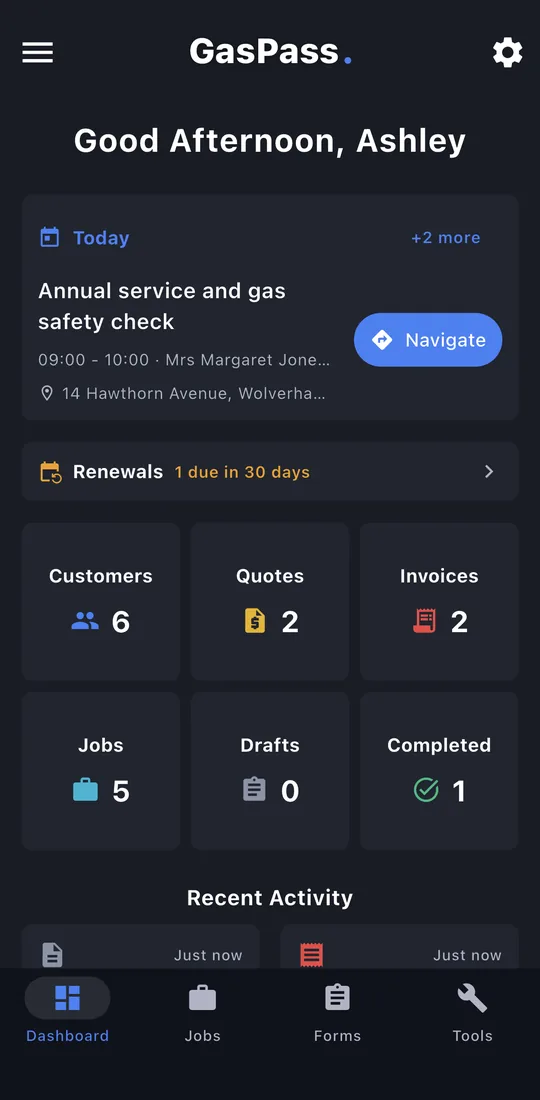
Your day at a glance:
- Today: your next job, with Navigate to get there.
- Renewals: certificates and services coming due.
- Tiles for customers, quotes, invoices, open jobs, drafts and certificates completed this month. Tap one to open it.
-
2Recent activity
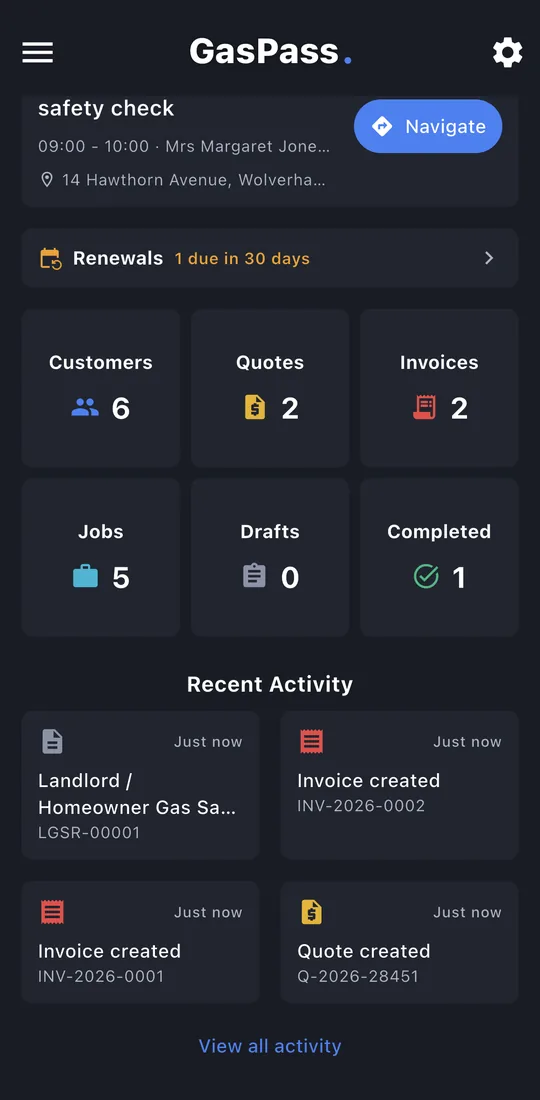
Further down: what's happened in the last week. New jobs, quotes, invoices, customers and completed certificates. Tap one to open it, or View all activity.
-
3Jobs
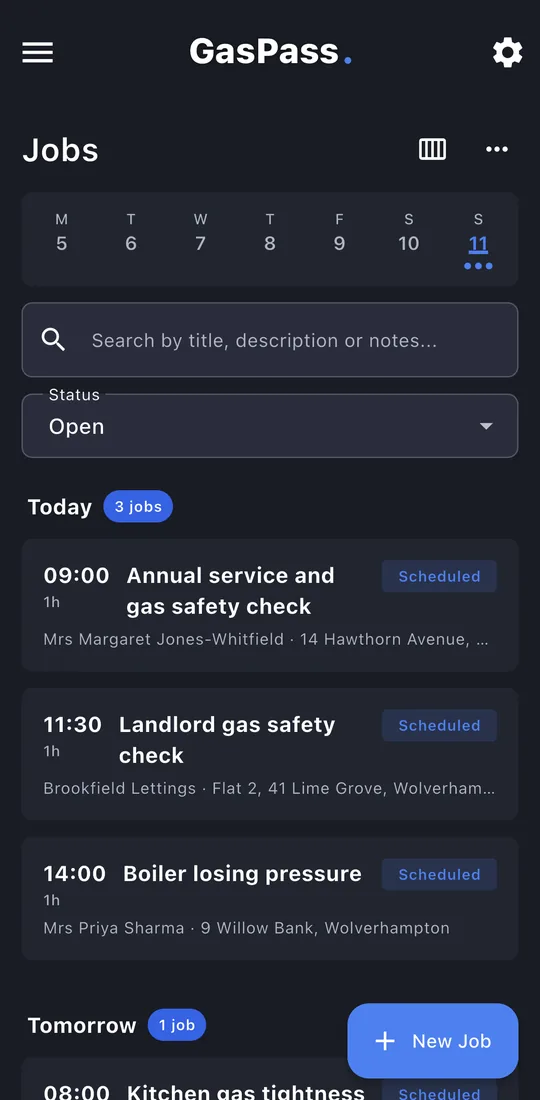
The second button along the bottom. This week across the top, then today's jobs, what's overdue and what's coming up. Tap the calendar button for the week and month views.
-
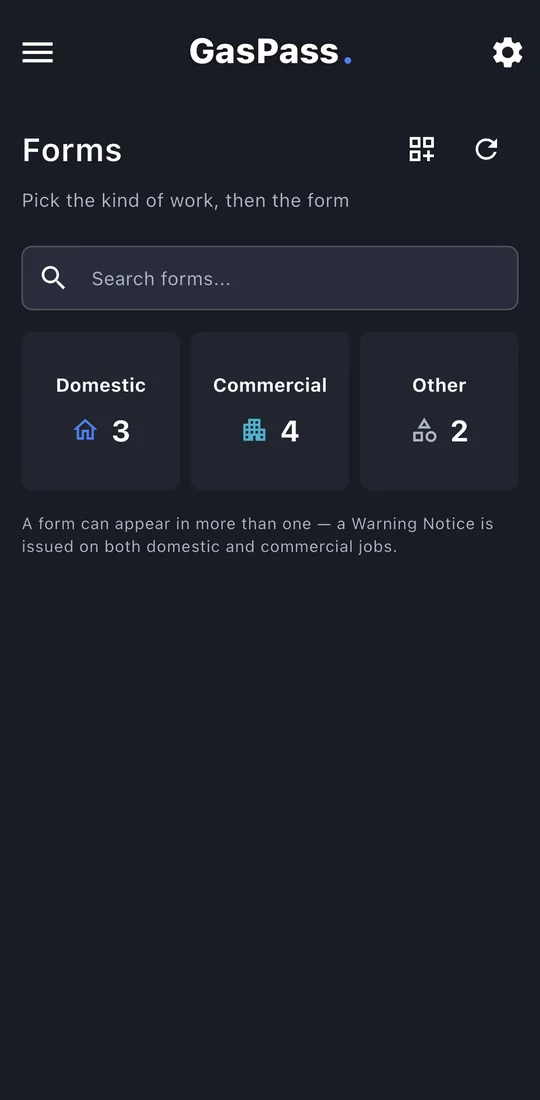
4Forms
The third button. Every certificate and record, sorted into Domestic, Commercial and Other, with a search box.
-
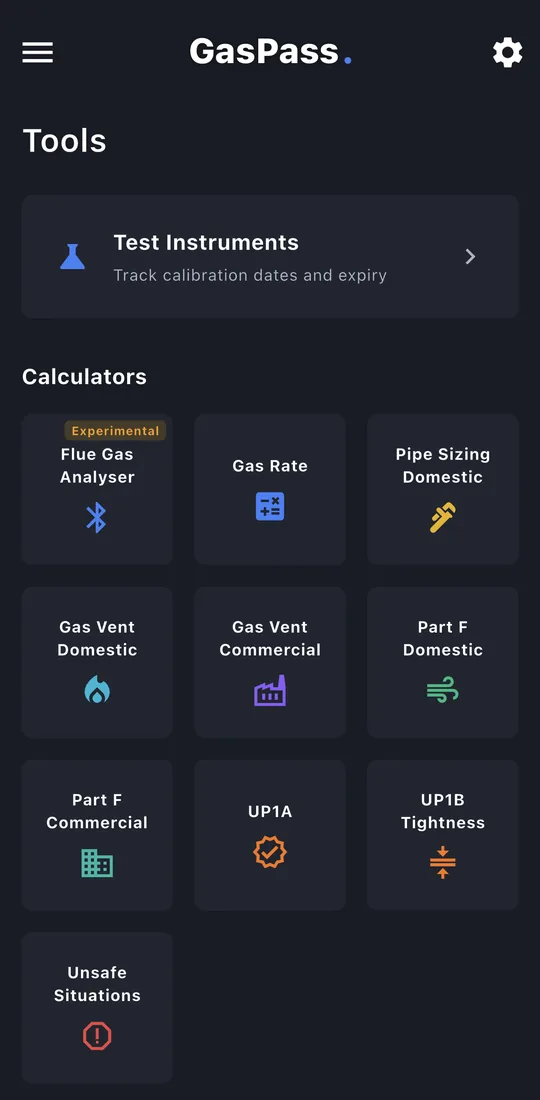
5Tools
The fourth button. Your test instruments and their calibration dates, then the calculators: gas rate, pipe sizing, ventilation, UP1A, UP1B, Unsafe Situations and the flue gas analyser.
-
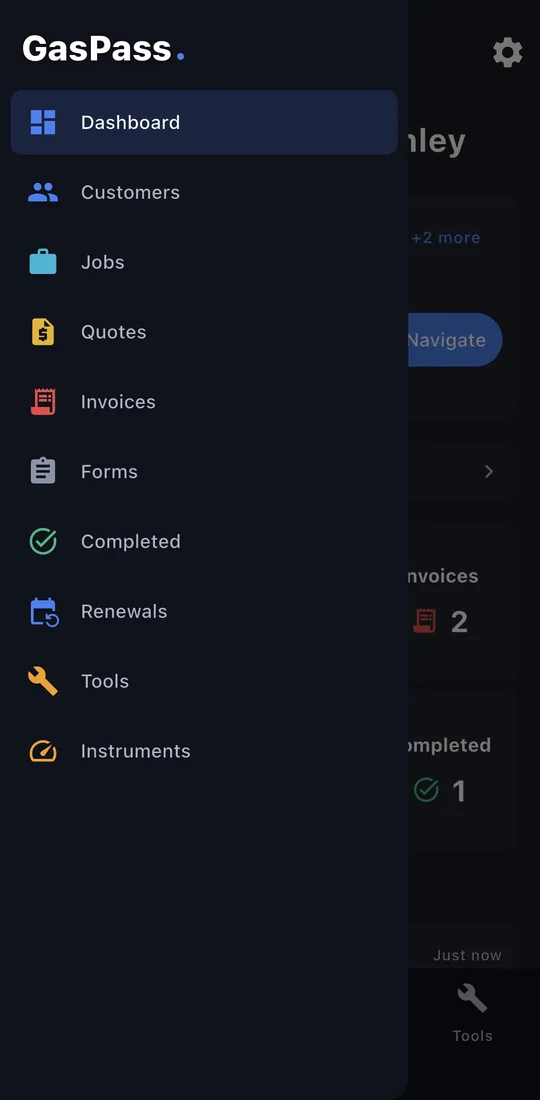
6The menu
Tap ☰ at the top left for everything else: Customers, Quotes, Invoices, Completed, Renewals and Instruments.
-
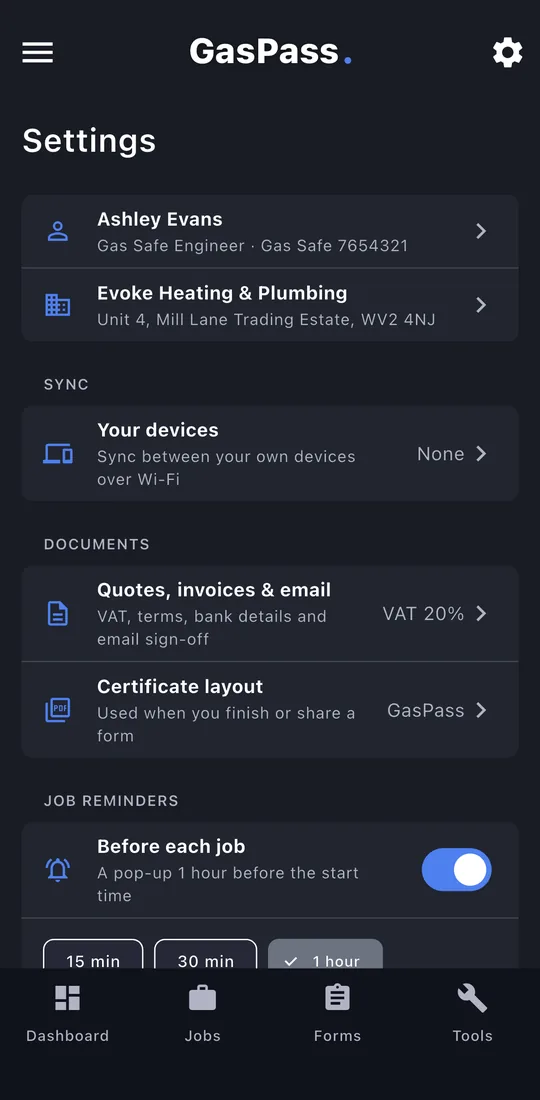
7Settings
Tap ⚙ at the top right. Your details and business, syncing between your own devices, quote and invoice settings, job reminders, backups and more.