 GasPass
 Guides › Your work
5. Jobs and the calendar
Book jobs, see your week, then start and complete them on site. The job keeps its forms, photos and a record of what you did.
-
1Your jobs
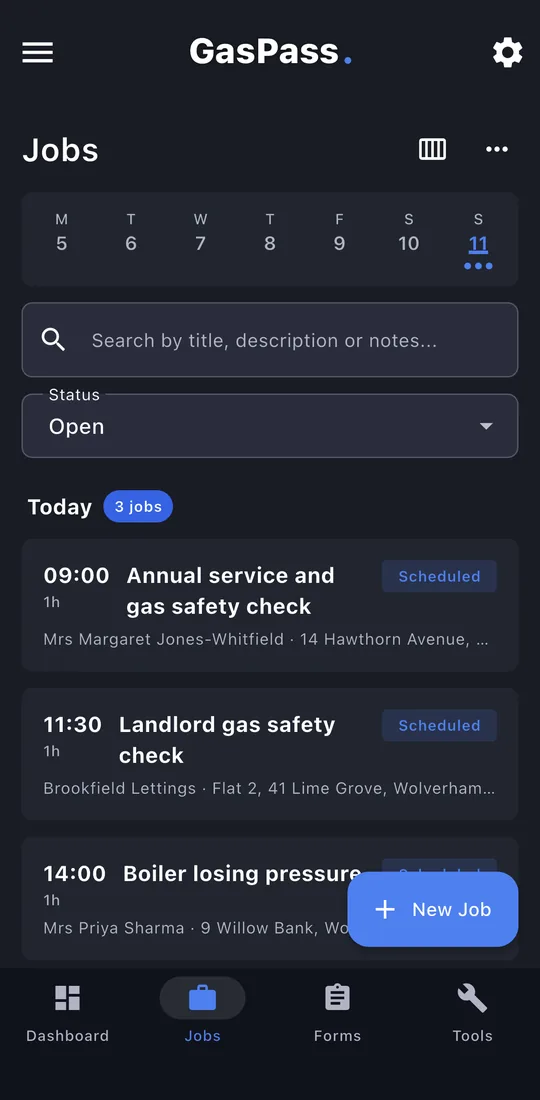
This week across the top (dots for visits), then today's jobs, what's overdue and what's coming up. Filter by status or search. Tap New Job.
-
2Who and where
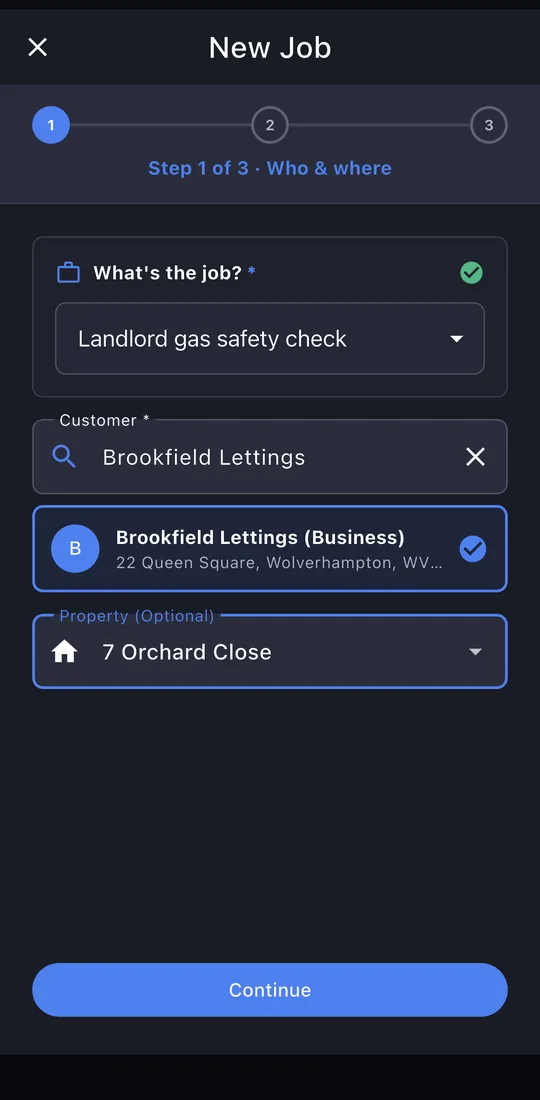
Pick a common job or type your own, then search for the customer and choose the property. A customer with one property has it chosen for you.
-
3When
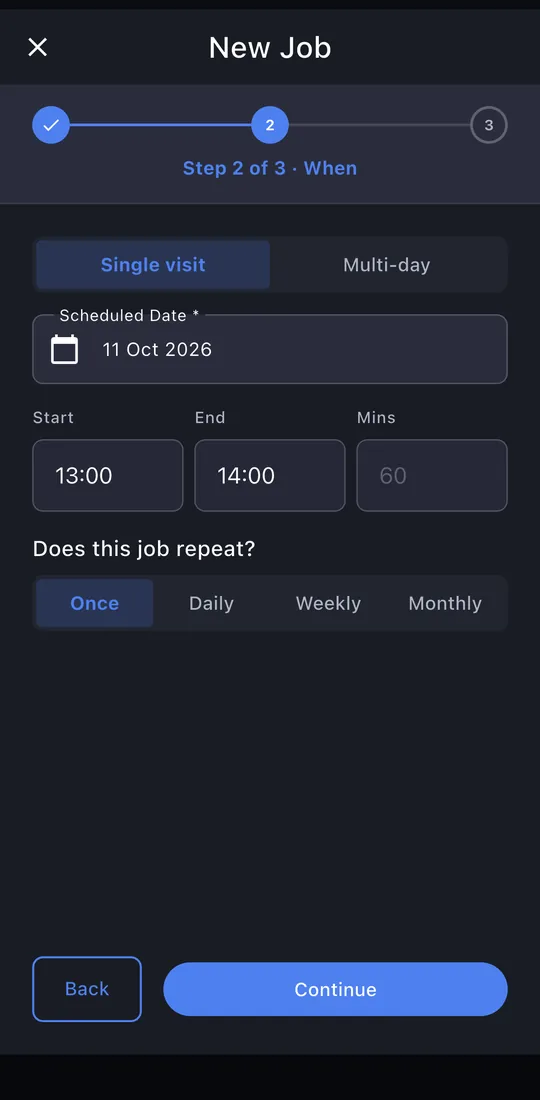
A single visit or several days, the date and times, and whether it repeats daily, weekly or monthly. GasPass warns you if it clashes with another job.
-
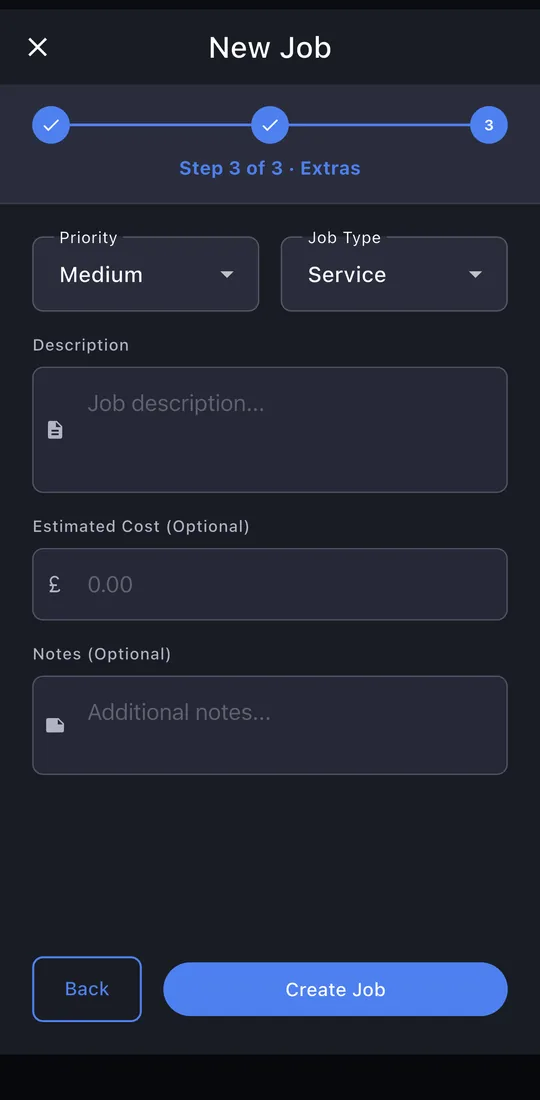
4Extras
Priority, job type, a description, an estimated cost and notes. Tap Create Job.
-
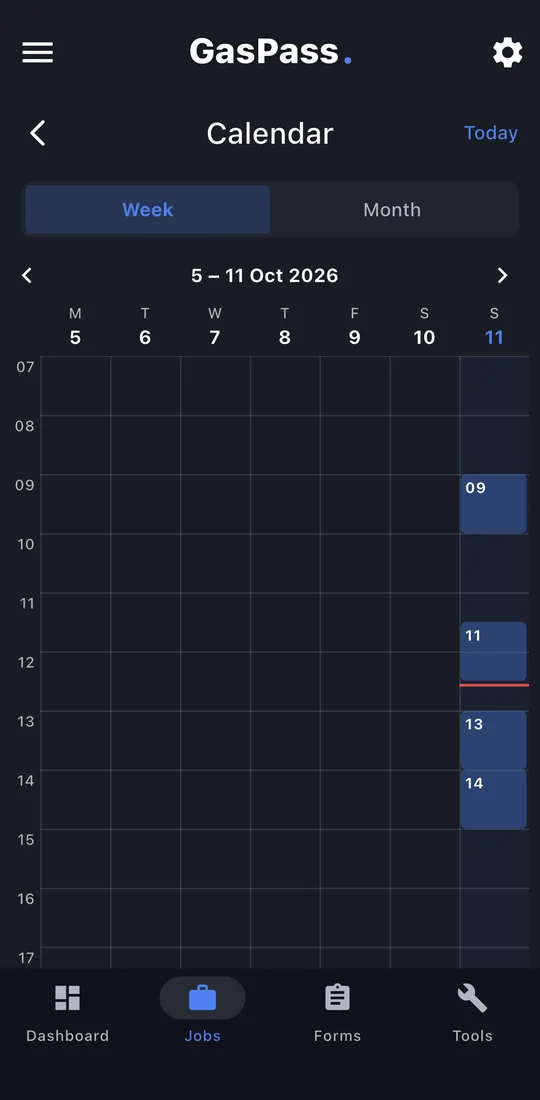
5The week
Tap the calendar button for the week, hour by hour. Tap an empty hour to book a job there.
-
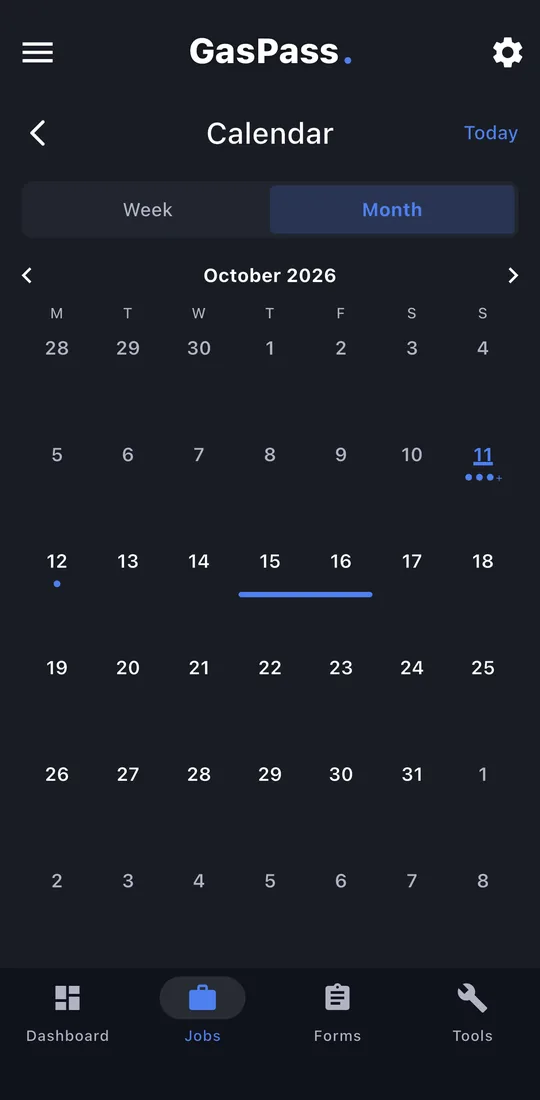
6The month
Month shows a dot for each visit and a bar for jobs over several days.
-
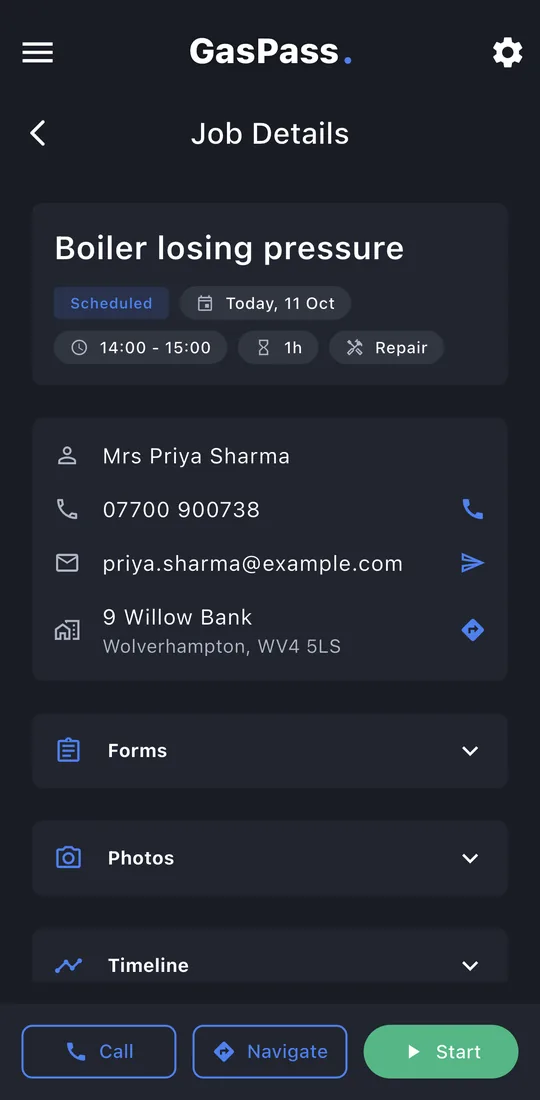
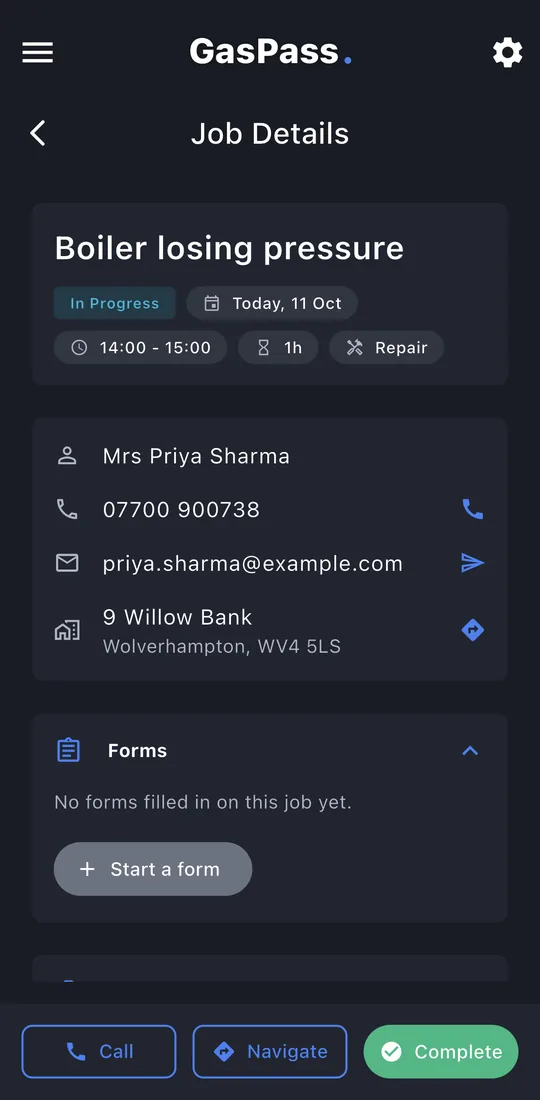
7A job's page
Who, where and when at the top, with one-tap call, email and directions. Start sits at the bottom with Call and Navigate.
-
8Start the job
Tap Start when you arrive. Its Forms section opens, ready for the paperwork.
-
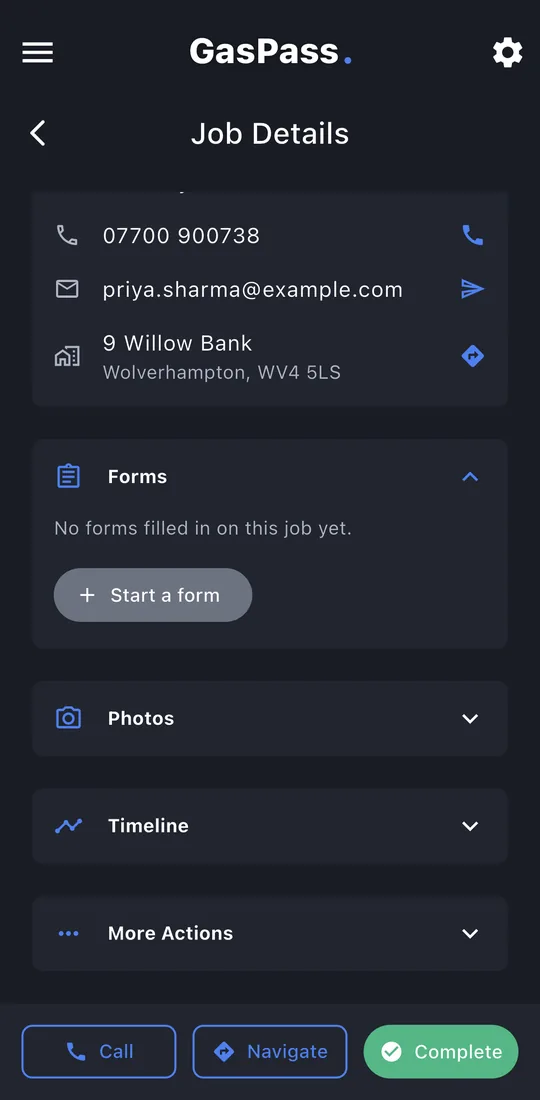
9Forms on the job
Tap Start a form for the certificate. Everything you fill in on the job is listed here.
-
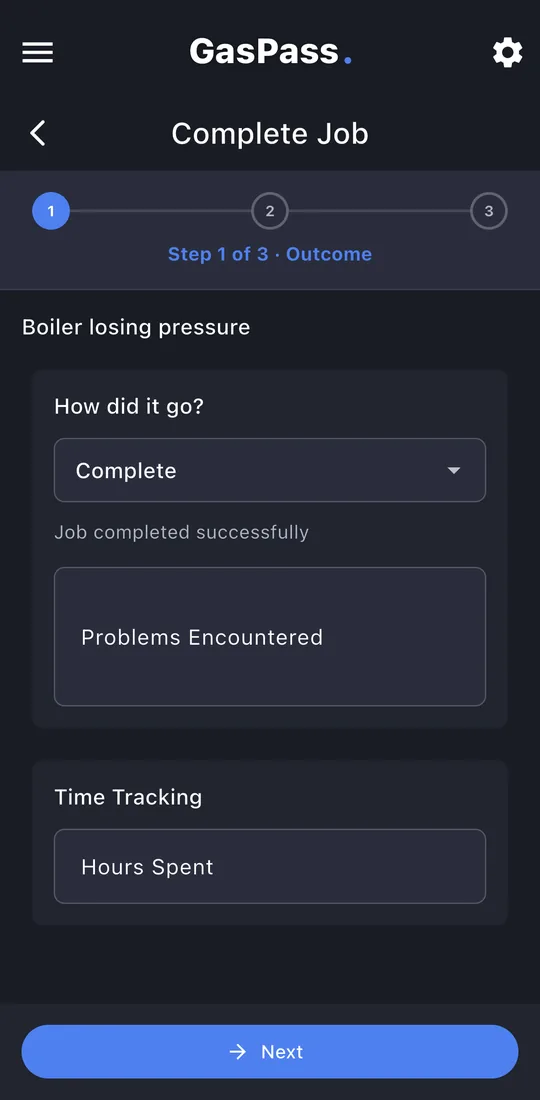
10Complete: how it went
Tap Complete. Was it finished, or does it need another visit? Problems and the time spent.
-
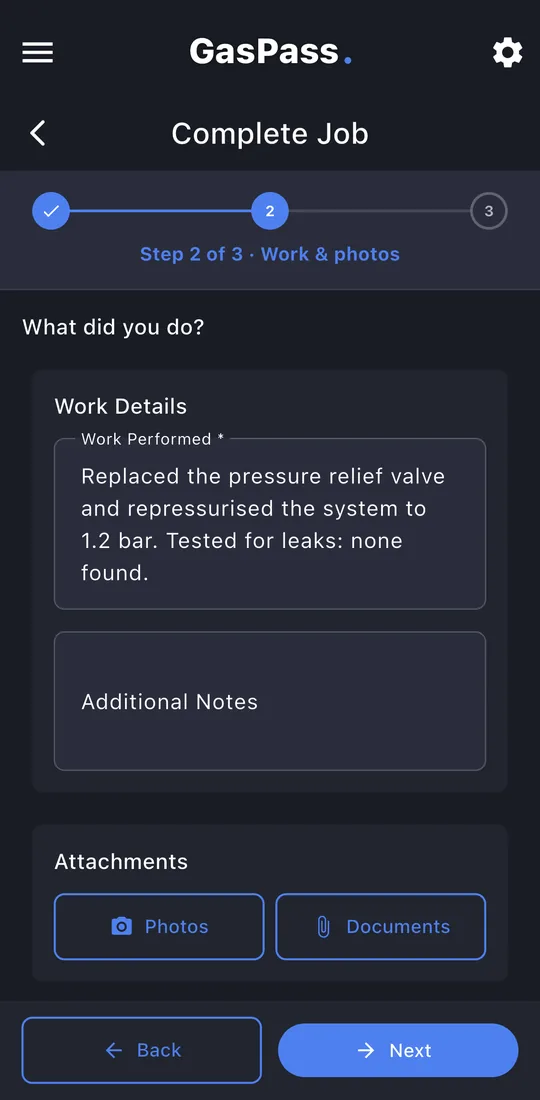
11Complete: what you did
The work you did, notes, and photos or documents.
-
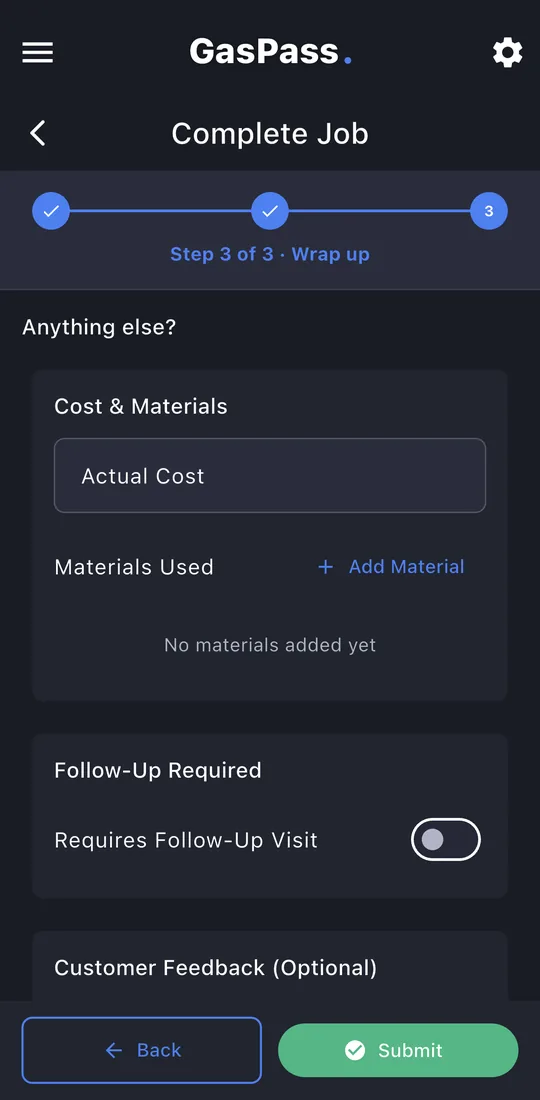
12Complete: wrap up
The actual cost, materials used, whether a follow-up visit is needed (GasPass offers to book it) and the customer's feedback. Tap Submit.