 GasPass
 Guides › Your work
6. Quotes
Price a job, send it as a PDF, and turn it into an invoice when the customer says yes.
-
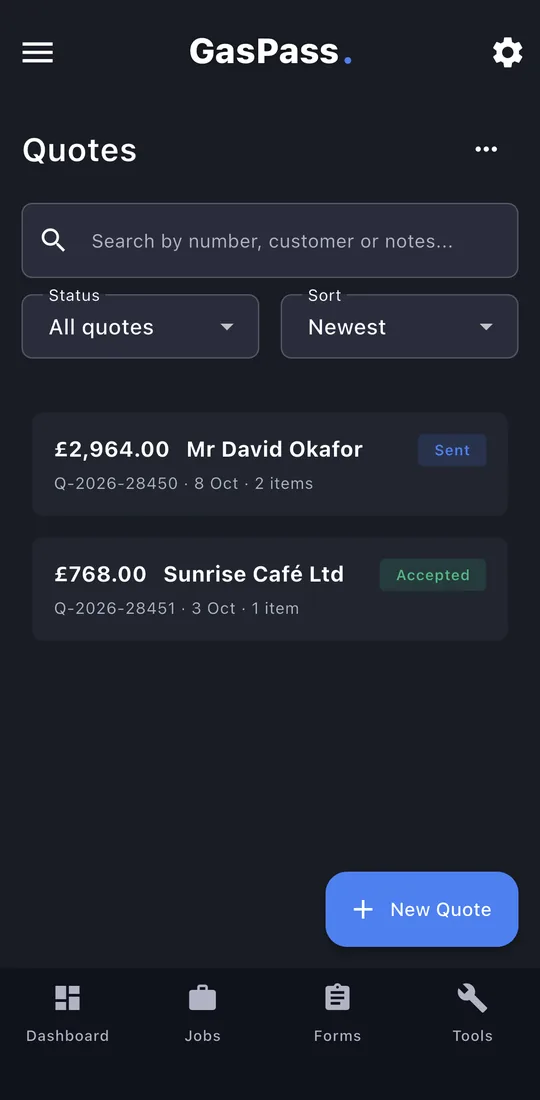
1Your quotes
Every quote with its total and status. Search, filter by status (Draft, Sent, Accepted, Rejected, Invoiced, Expiring soon) and sort. Tap New Quote.
-
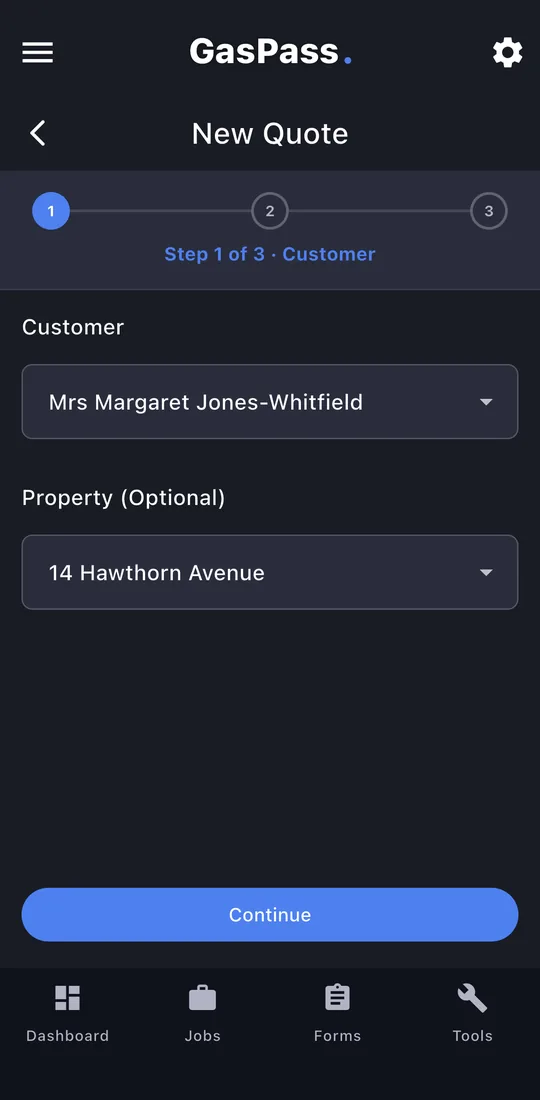
2Customer
Choose the customer. If they have one property it's chosen for you.
-
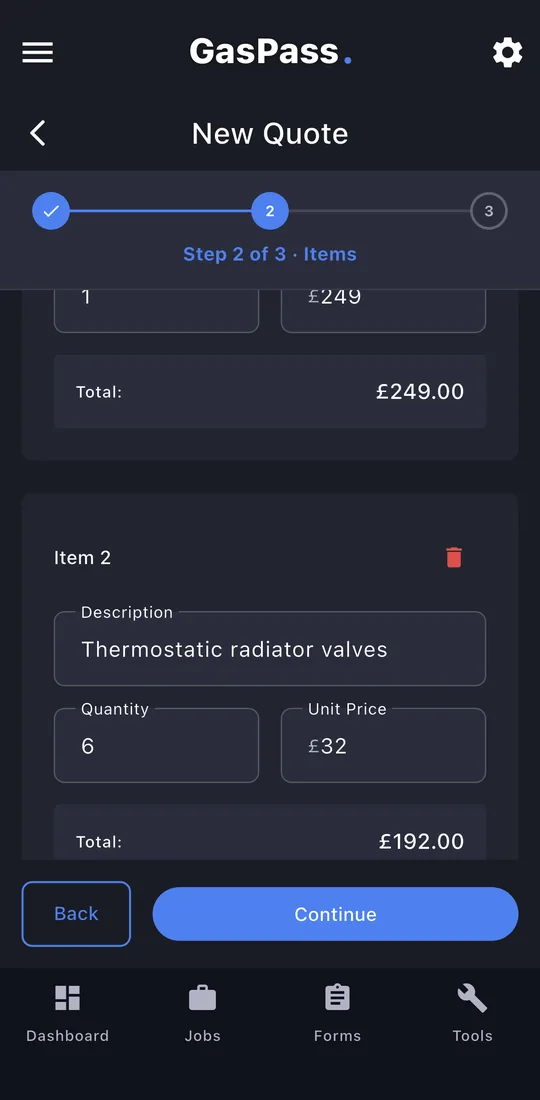
3Items
Tap Add Item for each line: description, quantity and price. Descriptions you've used before are suggested with their last price.
-
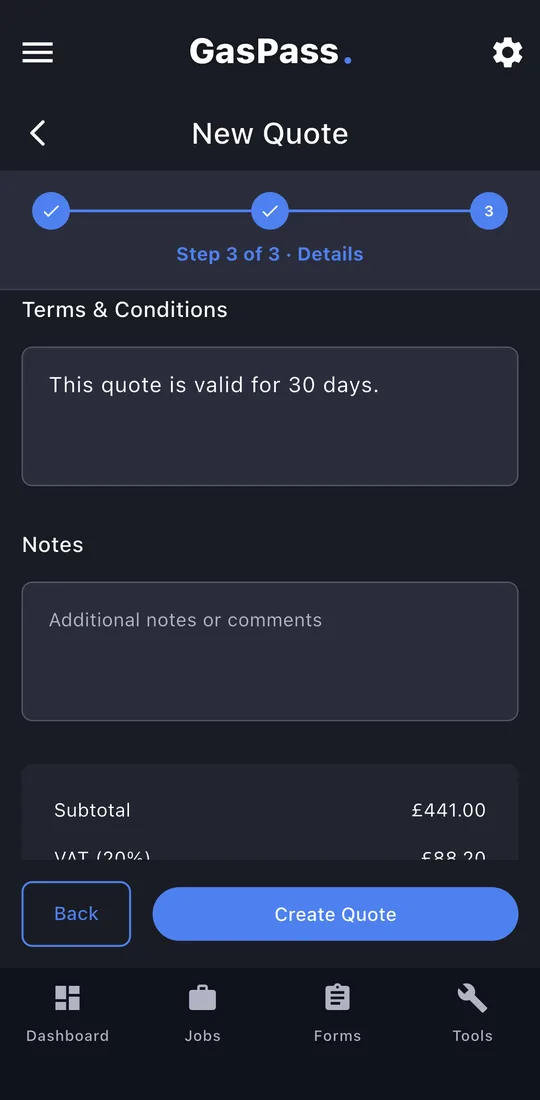
4Details
Dates, VAT, terms and notes. Your usual terms come from Settings. Tap Create Quote.
-
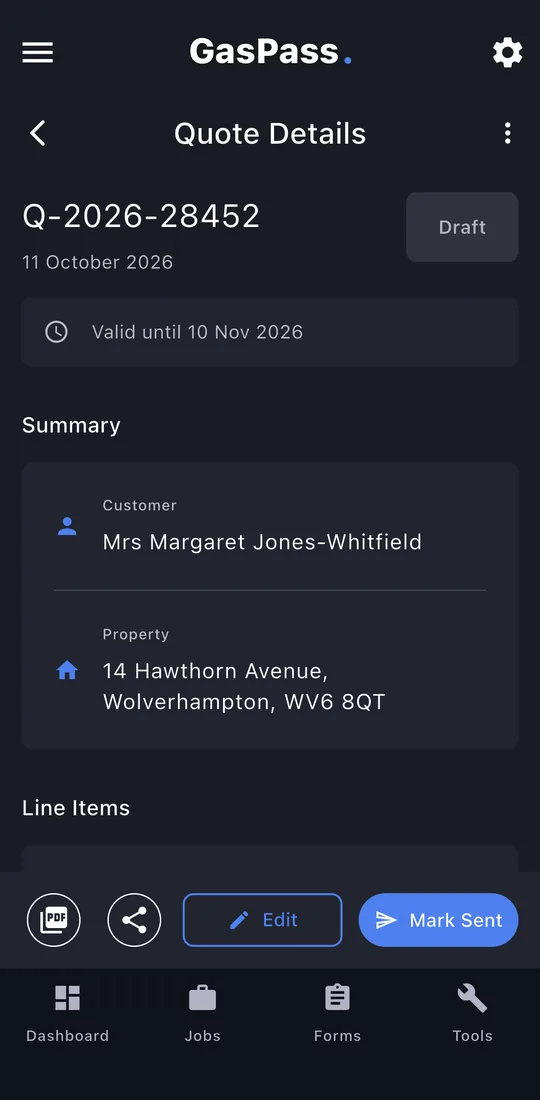
5The quote
The customer, property, lines and totals. Along the bottom: the PDF, share, Edit while it's a draft, and Mark Sent.
-
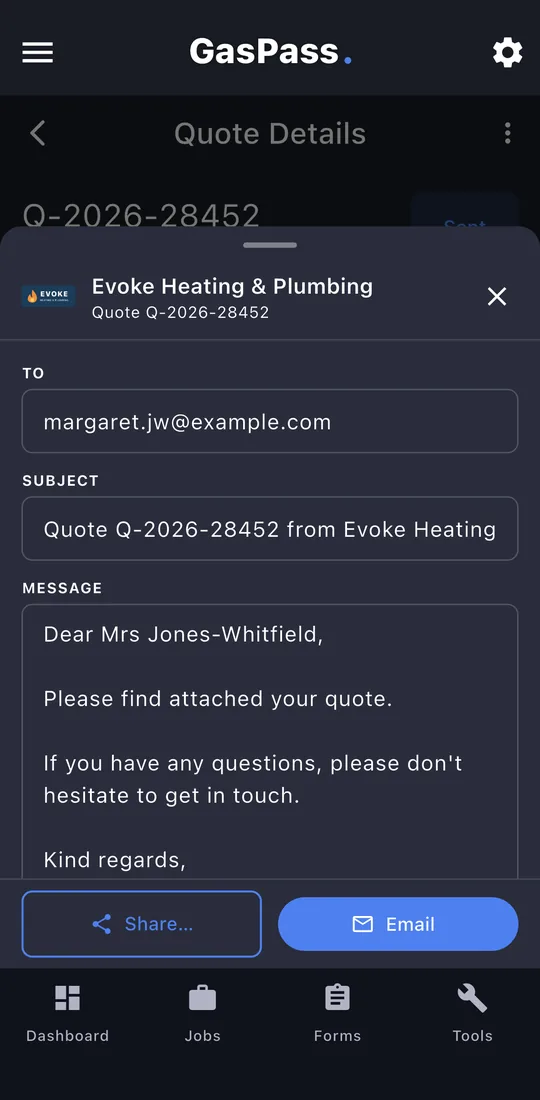
6Send it
Tap the share button. The email is written for you, to the customer, with the quote's PDF attached. Email opens your mail app; Share… sends it any other way.
-
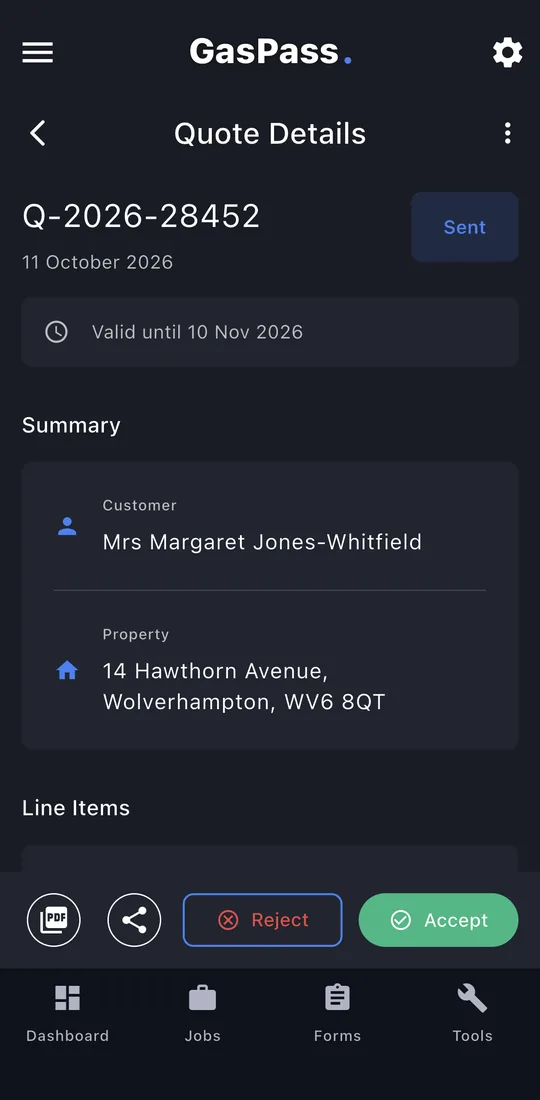
7Accepted or rejected
Once sent, tap Accept or Reject when you hear back.
-
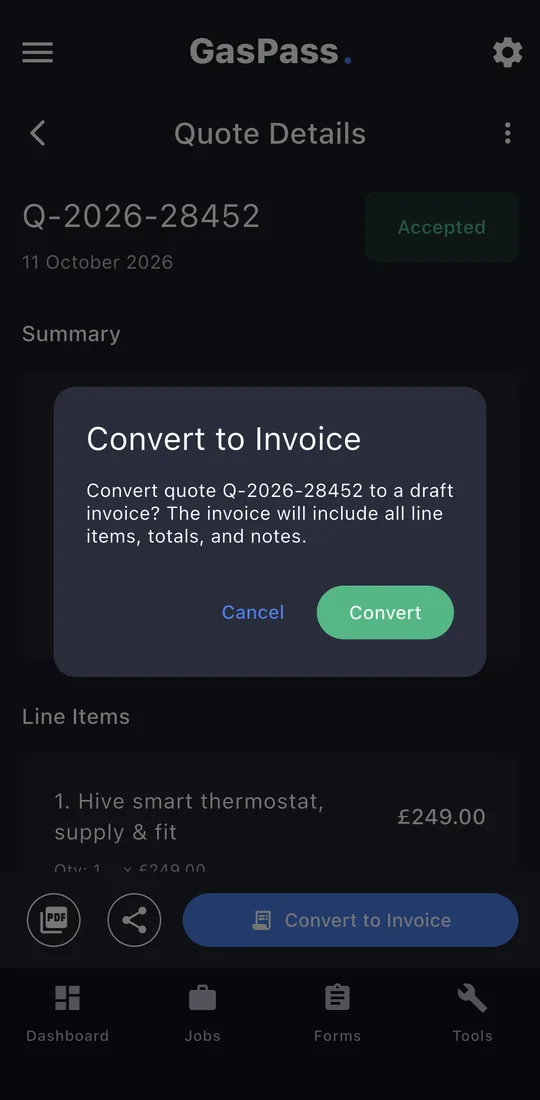
8Convert to Invoice
On an accepted quote, tap Convert to Invoice. You get a draft invoice with every line, the VAT and the notes, and the quote is marked Invoiced.
-
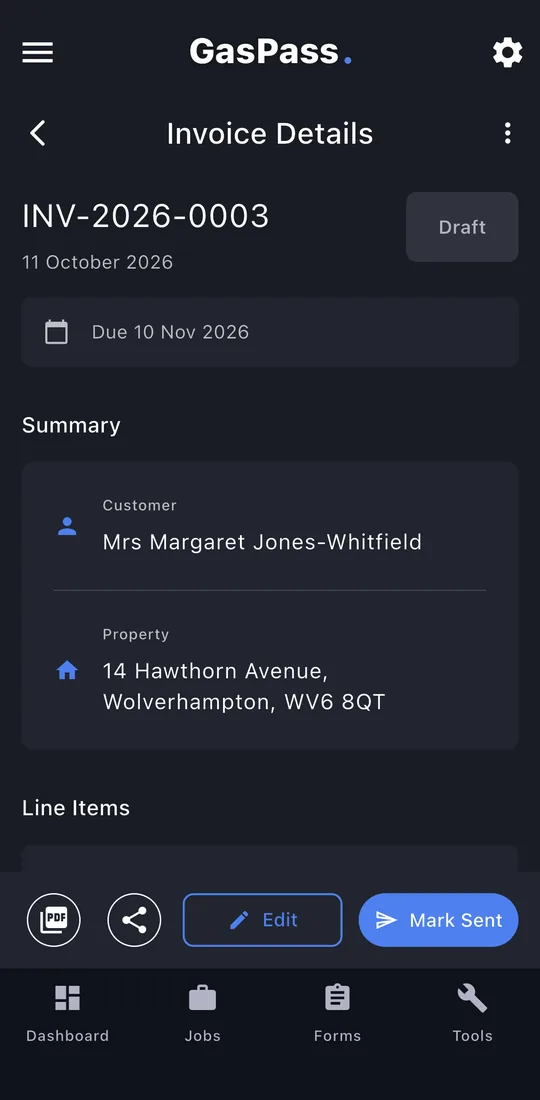
9The invoice
Check it, then Mark Sent. See the next guide.